OpenCode Setup Guide
An open-source AI coding assistant and intelligent coding companion in the terminal.
Overview
OpenCode is an open-source AI coding assistant that helps write, debug, and improve code from the terminal, IDE, or desktop environment. It supports a native terminal TUI, parallel sessions, and 75+ model providers, making it a strong fit for command-line developers.
Links
| Resource | URL |
|---|---|
| OpenCode project | https://github.com/opencode-ai/opencode |
Features
- Native terminal TUI: designed for efficient command-line workflows
- Smart LSP loading: automatically loads the right language server for better context
- Parallel sessions: run multiple sessions independently
- Session sharing: share session links for collaboration
- 75+ model providers: supports many providers, including local models
- Multi-platform: terminal CLI, desktop app beta, and IDE extensions
Installation and Configuration
Step 1: Install OpenCode
Open a terminal and install OpenCode globally:
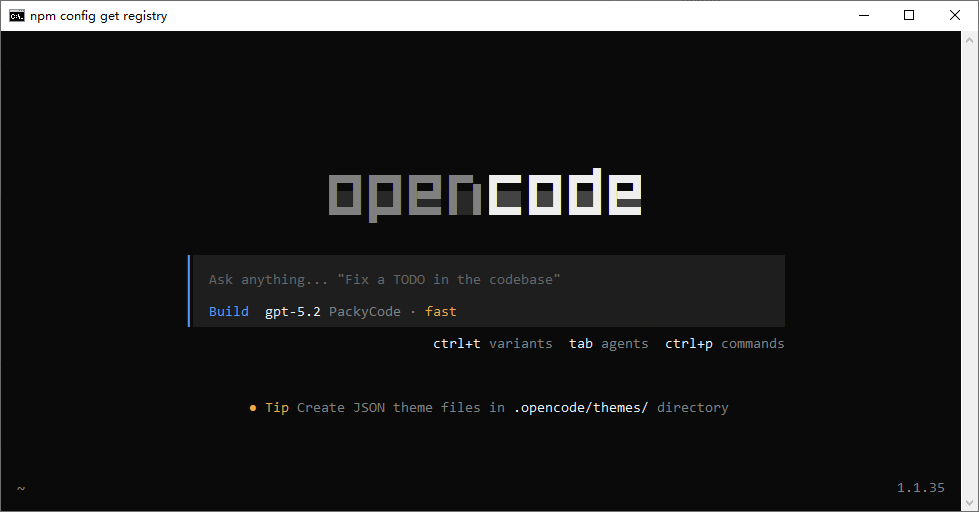
npm install -g opencode-aiAfter installation, run opencode. If the TUI appears, installation succeeded.
Step 2: Install CC-Switch
See CC-Switch and install it locally.
Step 3: Add a Xiaomai Provider
1. Choose configuration target
Open CC-Switch, choose OpenCode from the top configuration tabs, then click Add Provider.
2. Fill in provider information
Configure the parameters as follows:
| Field | Description |
|---|---|
| Preset provider | Choose xiaomai |
| Provider ID | Custom name, such as xiaomai-Claude |
| API format | Use Anthropic for Claude models, OpenAI for GPT models, and Google (Gemini) for Gemini models |
| API Key | Enter the key created in the Xiaomai API console |
| Extra options | Enter {"setCacheKey":true} |
Verify Configuration
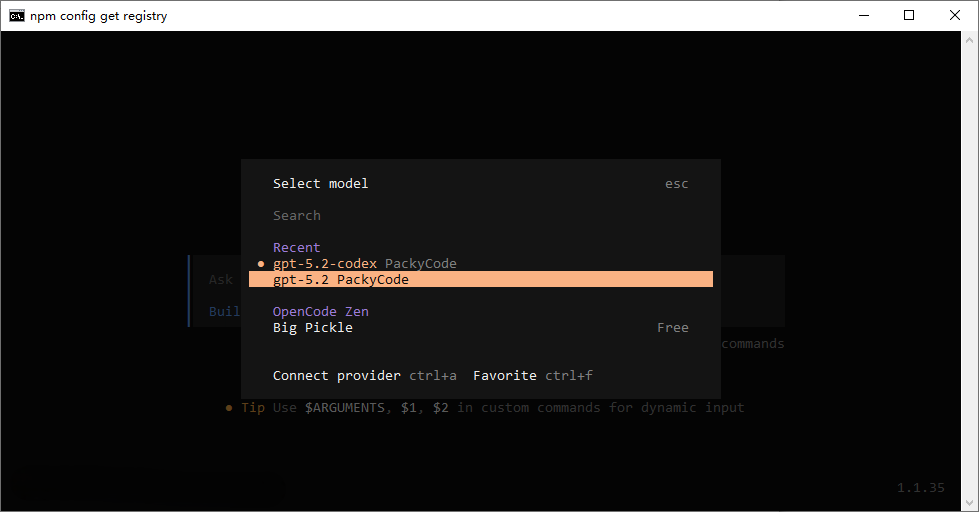
- Reopen the terminal and run
opencode - Run
/modelsand check whether the configured channel appears in the model list - If you can see the added model, configuration succeeded
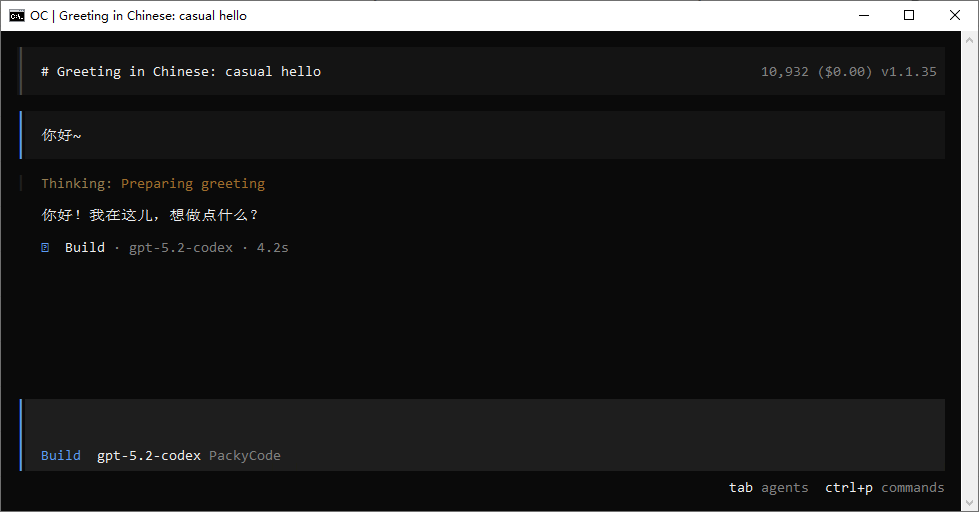
Start coding.
FAQ
npm not found during installation
Install Node.js first. See Node.js installation.
The configured channel does not appear in the model list
- Confirm the configuration was saved correctly in CC-Switch
- Restart the terminal and run
opencodeagain - Check whether the API key is correct